Smartphone accessibility settings help you customize communication features to fit your needs, whether you have vision, hearing, or mobility challenges. You can use options like screen readers to have on-screen text read aloud, and voice command features to control your device hands-free. These settings increase your independence and make using your phone more comfortable. Explore these options to personalize your experience and discover how they can improve your daily interactions—there’s plenty more to learn.
Key Takeaways
- Customize voice commands to open apps, send messages, or make calls, simplifying communication tasks.
- Use screen readers like VoiceOver or TalkBack to have on-screen text read aloud for better comprehension.
- Adjust speech settings such as speed, pitch, and verbosity to improve clarity and comfort during device use.
- Enable notifications and incoming call alerts with loud announcements to stay informed hands-free.
- Integrate voice commands with screen readers for seamless, hands-free communication and device control.

Smartphone accessibility settings are designed to make devices easier to use for everyone, especially those with visual, auditory, or motor impairments. When it comes to communication, these settings empower you to interact with your device more effectively, regardless of your specific challenges. One of the key features is voice command customization, which allows you to tailor how your phone responds to your spoken instructions. You can set up personalized commands for tasks like opening apps, sending messages, or making calls. This flexibility means you don’t have to remember complex commands or navigate through menus manually; instead, you speak naturally, and your device understands and executes your requests. Customizing voice commands ensures that your phone adapts to your communication style, making daily interactions smoother and more intuitive.
Alongside voice command customization, screen reader options are crucial for users with visual impairments. These tools convert text displayed on your screen into speech, enabling you to listen to the content instead of reading it visually. You can activate screen readers like VoiceOver on iOS or TalkBack on Android, which will read aloud notifications, messages, web pages, and app content. This feature helps you stay connected and informed without needing to see the screen clearly. Many screen reader options also allow you to adjust speech speed, pitch, and verbosity, giving you control over how information is delivered. By customizing these settings, you can optimize your listening experience to suit your preferences, whether you prefer a slower, clearer voice or faster, more natural speech.
Furthermore, these accessibility features work together to enhance your communication experience. For example, you can set your screen reader to announce incoming calls and messages loudly and clearly, ensuring you never miss important notifications. Voice command customization complements this by enabling you to initiate calls or reply to messages using simple voice prompts, which the screen reader then reads back to confirm. This integrated approach minimizes the need for physical interaction and makes communication more seamless, especially if motor impairments limit your dexterity. Additionally, accessible communication tools can be integrated with other device features to further improve usability. Overall, these settings are designed to give you more independence, comfort, and confidence in how you communicate with others. By taking the time to explore and personalize your voice command options and screen reader settings, you create a smartphone experience that truly caters to your needs, making everyday interactions more accessible and less frustrating.

12"Screen Magnifier Amplifier,3D HD Mobile Phone Magnifier Projector Screen for Movies,Videos,and Gaming.Foldable Mobile Phone Holder with Screen Magnifier,Supports All Smartphones,A Smart Gift(Black)
1.Latest design,HD super-thick screen, not fragile, no Huaping, ultra-durable, easy to use.The screen magnifier works just like a…
As an affiliate, we earn on qualifying purchases.
As an affiliate, we earn on qualifying purchases.
Frequently Asked Questions
How Do I Customize Accessibility Settings for Different Apps?
To customize accessibility settings for different apps, you should explore the app-specific settings within your device. Many smartphones allow you to adjust app customization options directly through the app or in your device’s accessibility menu. You can enable features like text-to-speech, magnification, or contrast adjustments for individual apps, ensuring a tailored experience. Just go to each app’s settings or accessibility options to personalize your experience based on your needs.
Can Accessibility Features Be Quickly Toggled During Calls?
Your phone’s accessibility features can be toggled faster than a lightning strike during calls. Simply access the quick toggle or accessibility shortcut for call accessibility, which allows you to enable or disable features like voice commands or subtitles instantly. This convenience guarantees you stay connected without interruptions, making your communication seamless. Setting up these shortcuts beforehand guarantees you can activate call accessibility features on the fly, whenever you need them most.
Are There Options for Customizing Haptic Feedback?
Yes, you can customize haptic feedback on your device. Many smartphones offer customization options that let you adjust the intensity, pattern, or even turn haptic feedback on or off for specific actions. To do this, go to your accessibility or sound settings, find the haptic feedback section, and explore the available options. This way, you personalize your experience to make communication more comfortable and accessible.
How Do I Adjust Font Size Universally Across All Apps?
To modify font size universally, go to your device’s display customization settings. Tap on “Font Size” or “Display Size,” then move the slider to increase or decrease font scaling. This change applies across most apps, making text easier to read. Keep in mind, some apps may have their own text settings, but adjusting the overall display customization ensures a consistent, accessible reading experience on your device.
Can I Set Different Accessibility Profiles for Work and Personal Use?
Yes, you can set different accessibility profiles for work and personal use. Use profile management features on your device to create user segmentation, allowing you to customize settings like font size, contrast, and voice commands for each profile. Switch between these profiles easily, ensuring your accessibility preferences suit your current activities. This helps you maintain peak communication and accessibility tailored specifically for work or personal use, enhancing your overall experience.
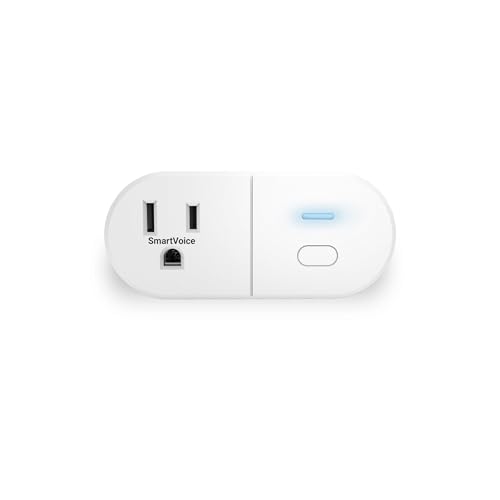
Emerson SmartVoice ES513 Wall Plug, Offline 30+ Voice Control Commands – No APP, No WiFi, No Setup, Smart Outlet Extender for Home and Office, Sleep & Wake Timer, ETL Listed
🔊 100% Offline Voice Control – Control any plugged-in device with simple voice commands using built-in SmartVoice Technology….
As an affiliate, we earn on qualifying purchases.
As an affiliate, we earn on qualifying purchases.
Conclusion
Think of your smartphone’s accessibility settings as a personalized bridge, connecting you smoothly to the world around you. By customizing these features, you turn your device into a tool that adapts to your needs, making communication effortless and inclusive. Don’t let barriers hold you back—embrace these options as your allies. With each adjustment, you’re building a stronger, more accessible pathway to stay connected and empowered every day.

Flaygo Hearing Aids for Seniors, OTC Hearing Aids for People with Hearing Loss, Sound Quality Restoration, Intelligent Noise Reduction, Standby 80h, One-Button Operation, Comfortable Wearing,Beige
Digital Chip, HIFI Sound Quality:Hearing amplifiers have a built-in 16-channel digital chip with intelligent noise reduction technology that…
As an affiliate, we earn on qualifying purchases.
As an affiliate, we earn on qualifying purchases.

iPhone 17 Pro User Guide for Beginners and Seniors: The Simple, Step-by-Step Visual Guide to Master Calling, Texting, Photos, and Essential Apps with Confidence
As an affiliate, we earn on qualifying purchases.
As an affiliate, we earn on qualifying purchases.