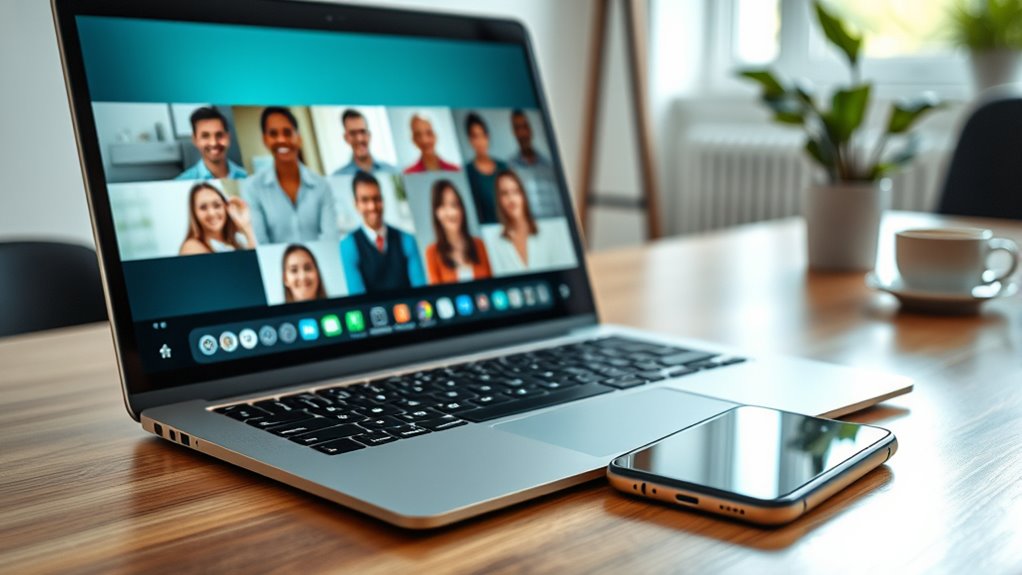

To set up video calling with accessibility, choose a device with a camera and microphone, like a smartphone or computer. Download a user-friendly platform such as Zoom, Google Meet, or Microsoft Teams, and create an account if needed. Test your equipment, verify a stable internet connection, and set up a quiet, well-lit space. Most platforms offer accessibility features like captioning and screen sharing. If you want to learn more about making your video calls easier for everyone, keep exploring these helpful tips.
Key Takeaways
- Choose compatible devices with camera and microphone, and select user-friendly platforms like Zoom or Google Meet.
- Download, install, and create an account or join meetings via links for easy access.
- Prepare a quiet, well-lit environment and test equipment to ensure clear audio and video quality.
- Use platform features such as screen sharing, captions, and adjustable settings to enhance accessibility.
- Maintain a stable internet connection, prefer wired over Wi-Fi, and troubleshoot equipment for reliable calls.

Have you ever wondered how video calling has transformed the way we connect? It’s incredible how, in just a few years, virtual communication has become a cornerstone of our daily lives. Whether for work, catching up with loved ones, or attending online events, video conferencing makes it easier than ever to stay connected no matter where you are. Setting up a reliable video calling system isn’t complicated, but understanding the basics can help you get started smoothly and ensure seamless communication.
Video calling has revolutionized how we connect, making virtual communication seamless and accessible worldwide.
First, you’ll need a device with a camera and microphone—most smartphones, tablets, and computers come equipped with these features. Once you’ve chosen your device, the next step is selecting the right platform, like Zoom, Microsoft Teams, Skype, or Google Meet. Many of these services are free, easy to download, and compatible with various devices, making virtual communication accessible to everyone. After installing your preferred app, creating an account is straightforward; typically, you just input your email and choose a password. Some platforms also allow you to join calls without creating an account, but registering offers additional features and security options.
When you’re ready to initiate a video call, simply open the app, sign in, and select or schedule your meeting. Adding participants is as easy as sharing a link or sending an invitation directly through the platform. Before your call, check your internet connection to ensure it’s stable and fast enough to support high-quality video and audio. A wired connection often provides better stability than Wi-Fi, especially if you’re in an area with network fluctuations. Also, test your camera and microphone to make sure they’re working properly. Many apps include built-in test features; if not, you can use your device’s settings to verify functionality.
Accessibility is a key aspect of effective virtual communication. Most platforms offer features like closed captioning, screen sharing, and adjustable font sizes to accommodate different needs. If you or your contacts have disabilities or technical challenges, explore the platform’s accessibility tools to ensure everyone can participate comfortably. Setting up a dedicated, quiet space with good lighting helps improve video quality and minimizes distractions. Additionally, familiarize yourself with the platform’s controls—mute, video on/off, chat—to manage your participation smoothly. Incorporating video calling into your daily routine can greatly improve your ability to connect with others across distances.
In essence, setting up a video calling system for virtual communication involves choosing the right device, platform, and environment. Once you understand the basic steps—download, sign up, test, and connect—you’ll find that staying in touch becomes effortless. With a little preparation, you can enjoy clear, reliable video calls that bridge distances and make virtual interactions feel more personal than ever.

NexiGo N60 1080P Webcam with Microphone, Software Control & Privacy Cover, USB HD Computer Web Camera, Plug and Play, for Zoom/Skype/Teams, Conferencing and Video Calling
【Full HD 1080P Webcam】Powered by a 1080p FHD two-MP CMOS, the NexiGo N60 Webcam produces exceptionally sharp and…
As an affiliate, we earn on qualifying purchases.
As an affiliate, we earn on qualifying purchases.
Frequently Asked Questions
How Do I Troubleshoot Audio Issues During Calls?
To troubleshoot audio issues during calls, start with audio troubleshooting steps like checking your microphone and speaker connections. Use call diagnostics features to identify problems, such as testing audio levels or switching devices. Confirm your device permissions are granted for the app. Restart your device if needed, and update your app or system. If issues persist, contact support or try using a different headset to isolate the problem.
What Privacy Settings Should I Enable for Secure Calls?
Imagine locking a door to keep your secrets safe; for secure calls, enable privacy protection by turning on end-to-end encryption. This acts like a digital vault, safeguarding your conversations from prying eyes. Adjust your privacy settings to restrict access, disable recording options, and choose apps with robust encryption standards. By doing so, you create a fortress around your calls, ensuring your conversations stay private and protected from intrusion.
How Can I Improve Video Quality in Low Bandwidth?
To improve video quality in low bandwidth, you should enable video compression options to reduce data usage and optimize streaming. Additionally, manage your bandwidth by closing unnecessary apps and limiting background activity. Adjust the video quality settings to a lower resolution if needed, which helps maintain smoother calls. These steps guarantee better video clarity despite limited bandwidth, providing a more seamless calling experience.
Are There Accessibility Features for Hearing-Impaired Users?
Yes, many video calling platforms offer accessibility features for hearing-impaired users. You can enable sign language interpretation, where an interpreter is added to your call, or use visual notification alerts that notify you of incoming calls or messages without sound. These features help guarantee effective communication, making video calls more inclusive. Check your platform’s settings to activate these options and customize them to suit your needs.
Can I Record Video Calls for Later Reference?
You can easily record your video calls for later reference, but keep in mind call recording legality varies by location. Always check local laws before recording. Most platforms offer storage options like cloud services or local downloads, making it convenient to save and review your calls. This way, you preserve important conversations and guarantee you have access whenever needed, all while respecting privacy and legal considerations.
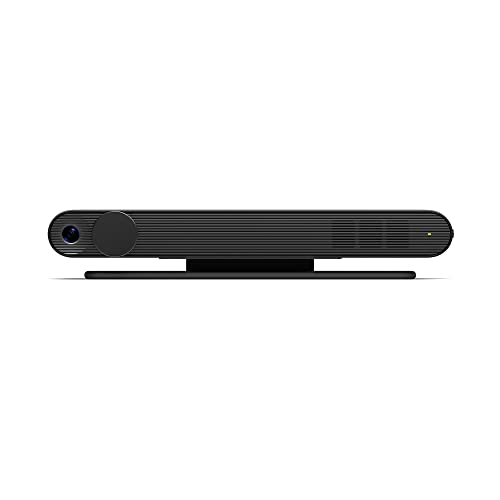
Meta Portal TV – Big Screen Smart Video Calling for Group Calls on Your TV
Scale up your greatest conversations. Smart video calling on your TV brings your favorite people, larger-than-life, into your…
As an affiliate, we earn on qualifying purchases.
As an affiliate, we earn on qualifying purchases.
Conclusion
Now that you know how to set up and access video calling, you’re ready to bridge distances effortlessly. Think of it as opening a window to new conversations and connections, no matter where you are. With just a few simple steps, you can turn your device into a gateway to shared moments and meaningful interactions. So go ahead—dive in and let your digital conversations blossom like flowers in spring. The world is just a call away.

Logitech Brio 101 Full HD 1080p Webcam for Meetings, Streaming, Desktop, Laptop, PC – Built-in Mic, Shutter, Works with Zoom, Microsoft Teams, Nintendo Switch 2’s new GameChat Mode, USB-A,-Black
Compatible with Nintendo Switch 2’s new GameChat mode
As an affiliate, we earn on qualifying purchases.
As an affiliate, we earn on qualifying purchases.

Zoom Lighting for Computer, Adjustable Desk Lighting for Video Calls, 30 Light Modes Video Conference Light, Desk Ring Light with Stand for Webcam, Meetings, Live Stream, Home Office. CRI 97.8
Uniform and Soft Illumination: LitONES desk video conference light utilizes advanced edge-lit technology, delivering even and gentle lighting…
As an affiliate, we earn on qualifying purchases.
As an affiliate, we earn on qualifying purchases.